
How to get started with Energy Saver App
Energy Saver App should be quick and easy to download and start using. Below are some simple step-by-step instructions to help you get set up and start saving energy at home!
If you’re locating your smart meter information manually, it might be helpful to find your in-home display so you have it handy - you'll need a MAC number from this to confirm you are resident at your smart meter's address.
An in-home display is normally provided to you when your smart meter is installed. The MAC number is often printed on the bottom of the display, or can be found in the settings as a series of hyphenated characters. You’ll need the last four characters without hyphens or spaces.
An in-home display is normally provided to you when your smart meter is installed. The MAC number is often printed on the bottom of the display, or can be found in the settings as a series of hyphenated characters. You’ll need the last four characters without hyphens or spaces.
If you do not have a smart meter but wish to have one installed, click here.

Step one: download Energy Saver App
Download Energy Saver App from either Google Play or the App Store, depending on your device.
If you are currently using your smart phone to view this page, you can download Energy Saver App by clicking one of these buttons:


If you are using another device, like a computer, to view this page, you can use your smart phone’s camera to scan this QR code:


Step two: open Energy Saver App and sign up to be a new customer
Once you have downloaded Energy Saver App on your smart phone, open the app.
You can do this immediately after downloading it from the App Store or Google Play.
Alternatively, you can do this by clicking on the Energy Saver App icon from your home screen or list of apps.
Once you have opened Energy Saver App, select the button that says ‘sign up to be a customer’.

Step three: give consent & agree to terms

In order to access your smart meter data and help you reduce how much energy you use at home, Energy Saver App needs to connect to the 'National Meter Database', where your home's energy information is stored.
In order to use the app and allow it to access this information, you’ll need to tick the box to give your consent for this before you can continue by clicking the ‘next’ button.
Step four: enter your postcode and select your address
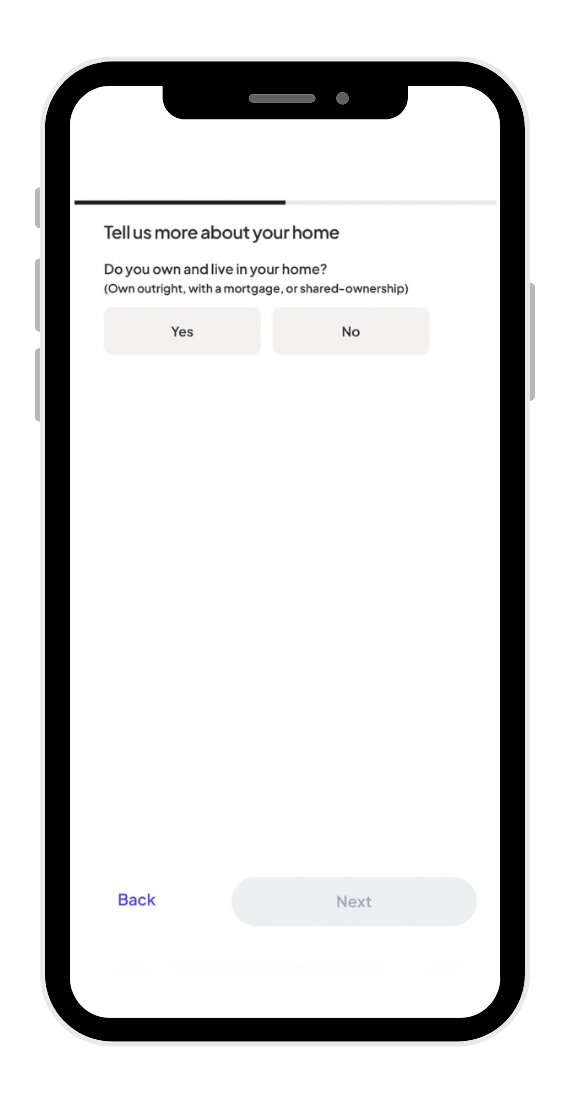
Select the correct option for whether or not you own and live in your home.
Then enter your postcode and press the search button. Select your address from the list, and click the next button.Then enter your postcode and press the search button. Select your address from the list, and click the next button.

Step five: tell the app more about you and your home energy
In the next sections, you will need to provide the app with information about you and your energy use.
It should be simple and clear how to do this - just enter the information it asks for and select the ‘next’ button.
It will ask for things like your name, email address, how you pay your fuel bills, who your energy supplier is, what tariff you’re on and your household’s typical daily occupancy pattern.


Step six: choose how you'd like to connect your smart meter
We need your consent to access your smart meter data. With your authorisation, we can connect to your meter and gather information about your energy usage to provide you with valuable insights into how you’re consuming energy.
You can choose which method you would like to use to provide consent for Energy Saver App to connect to your smart meter:
In-home display consent: this means you will need to find some information on your in-home display, and input it into the app.
Active card check: this means you will need to input your address and card details. Your card details won't be stored and no payment will be processed - it's just to verify that you live at your address.


Step seven: connect your smart meter

Option 1
Active card check
Please enter your credit or debit card details so your bank can confirm your address - you won't be charged. We’ll then be able to utilise your smart meter data to provide your personalised energy insights; key to Energy Saver App's functionality.
If you wish to provide consent via your smart meter’s In Home Display instead, please press back and select that option.
Option 2
In-home display consent
For this bit, you’ll need your smart meter’s in-home display, which is normally provided when your smart meter is installed – it’s a separate device.
We'll need the last four digits of your in-home display's MAC address (sometimes called a GUID or UUID).
This is often printed on the bottom of the display, or can be found in the settings/help screen. It’s a series of 12 or more characters, usually separated in pairs by hyphens, colons or spaces.
The format will be similar to the following:
- 01-23-45-67-89-AB
- 01:23:45:67:89:AB
- or 0123456789AB
You’ll need the last four characters (without the delimiters if it has them) so the last four characters would be 89AB in all the examples above.


Step eight: tell us more about your home so we can provide tailored insights

Finally, let us know about your home, so our app can give you accurate insights that are right for you.
Go to the Home Profile section of the app to do this.
If you change anything about your home later, just go back into Home Profile to update the app.
Need more help?
Email energysaverapp@smsenergy.com or fill in the form on our contact page
